
All guides
Getting started
From download to your first campaign in a few minutes. This page also gives you a tour of the window, so you know where everything is before your first session.
Install the app
- Download the installerGet it from the download page. You need Windows 10 or 11 (64-bit) and about 1 GB of free space.
- Run itChoose where to install, or keep the suggested folder. It installs for your Windows account only, so you don't need to be an administrator. When it's done, GM Companion opens, and you'll find it in the Start menu.
Sign in and start your trial
- Sign inChoose Continue with Google or Continue with Discord, which finish in your web browser, or type your email address and enter the code we send you. There's no password to remember.
- Start your free trialNew accounts get 7 days free. Start free trial opens checkout in your browser. Nothing is charged until the trial ends, and you can cancel any time before then. When checkout is done, the app unlocks by itself.
The setup guide
The first time you sign in, a short guide walks you through the basics. Only the first step is required; you can skip the rest and come back to it in Options.
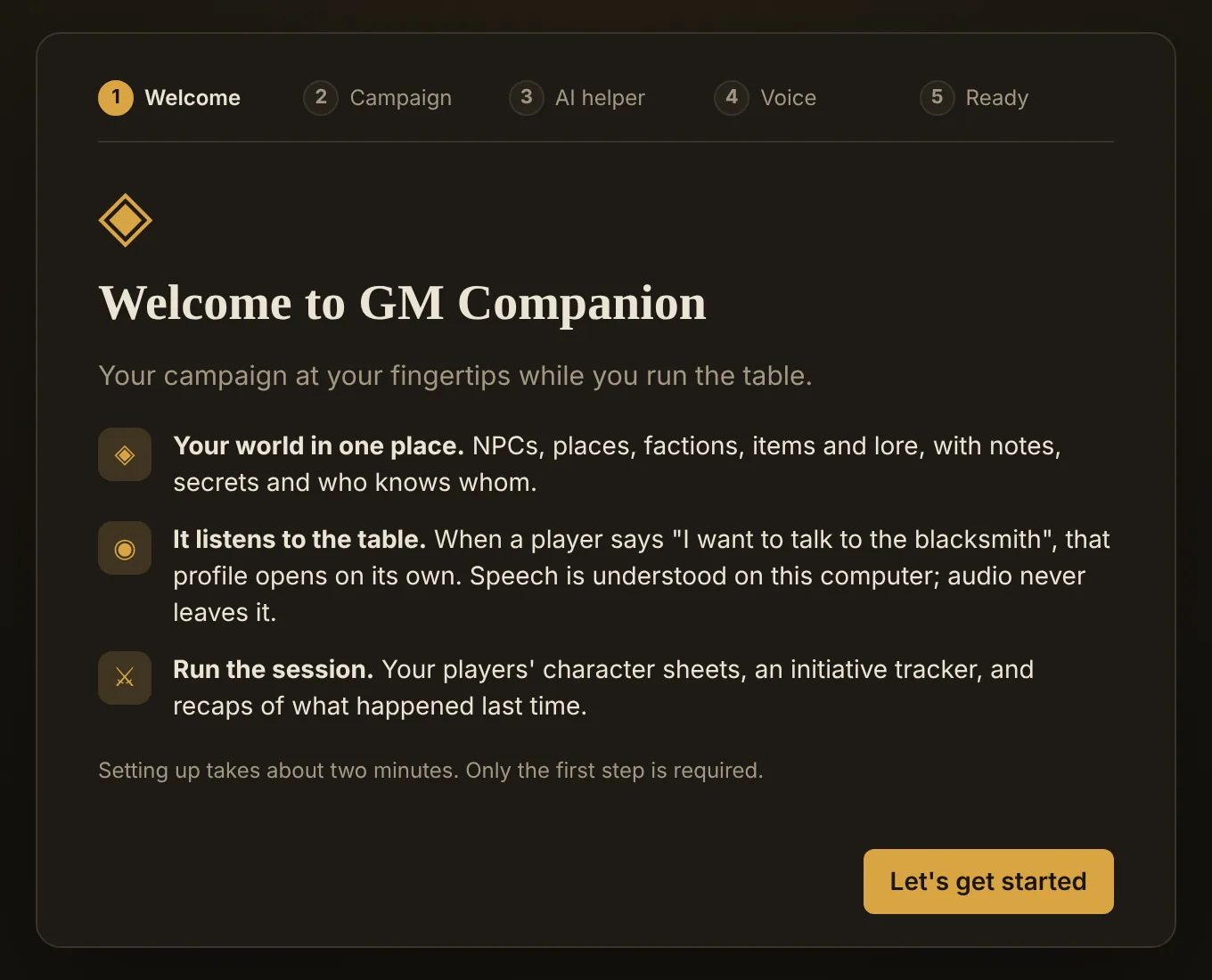
- Create a campaignStart with Hollowmere, a small harbor town with a smith, an innkeeper, a smuggling ring and an unsolved murder already filled in, or an empty campaign of your own. You can have as many campaigns as you like.
- AI helper (optional)Connect an AI model for extras like importing PDFs, session recaps and improvised lines. You can skip this: everything you need at the table works without it. See Setting up an AI model.
- Voice (optional)Pick your microphone and say a name from your campaign to test it. The speech model downloads the first time (about 150 MB). See Listening to the table.
A tour of the window
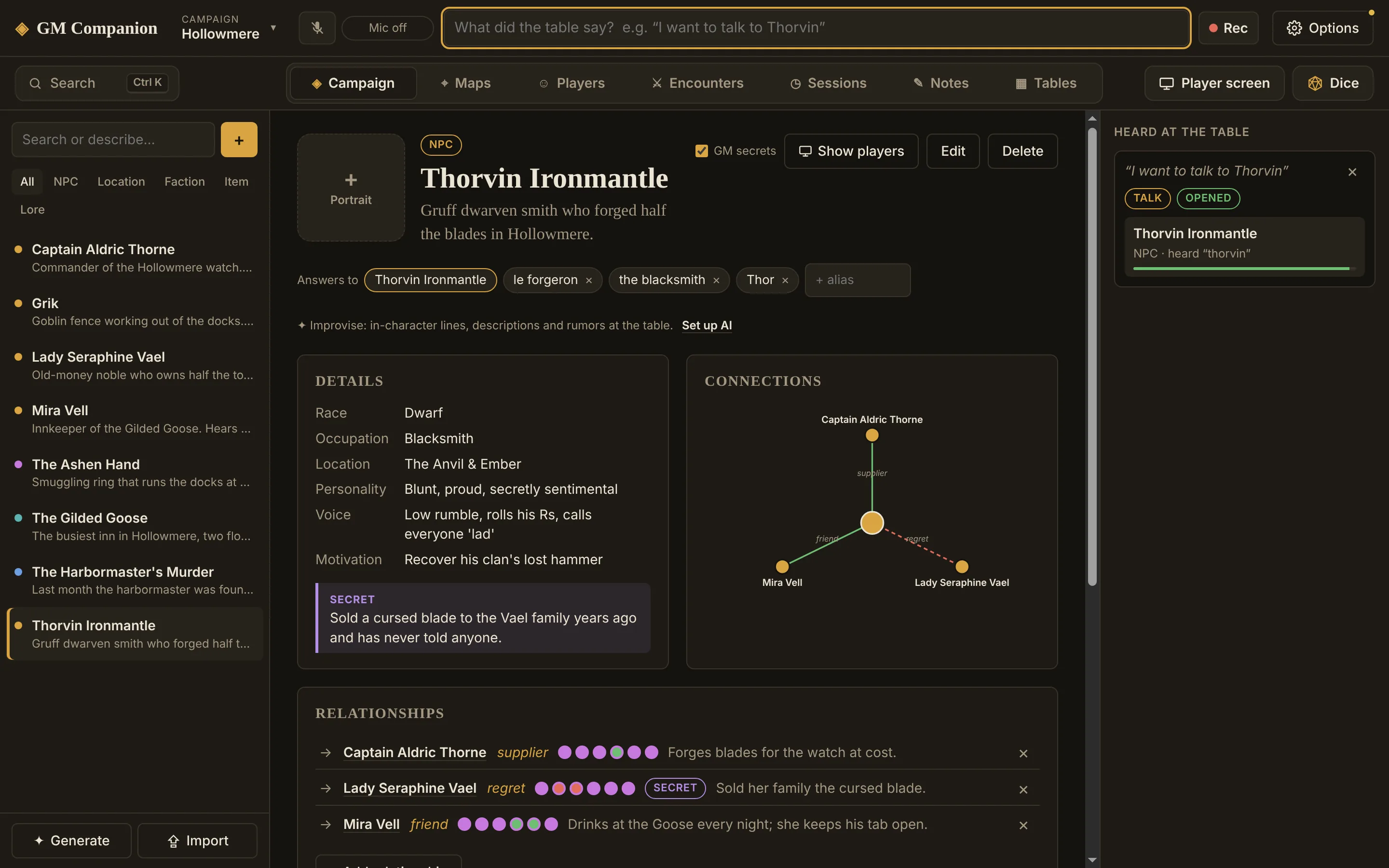
The Campaign tab, with an NPC open and “Heard at the table” on the right.
The top bar: what you use during play
- Campaign menu (top left): switch campaigns, start a new one, export or delete the one that's open.
- Microphone and its status: click to start or stop listening.
- What did the table say? Type what a player said, like “I want to talk to Thorvin”, and press Enter. It works exactly like speech.
- Rec records the session. See Recording sessions.
- Options: listening, appearance, AI model, account and advanced settings. A small dot means no AI model is set up yet.
The tab bar: everything else
- Search (Ctrl K) on the left finds anything. See Quick search.
- Campaign, Maps, Players, Encounters, Sessions, Notes and Tables in the middle. The app remembers the last one you used.
- Player screen and Dice on the right.
Heard at the table
The panel on the right shows what the app picked up from the table and who it thinks was meant. It works on every tab: clicking a name there opens their profile on the Campaign tab.
Where to go next
Explore the demo campaign in Your campaign, then turn on the microphone with Listening to the table. Before game night, add your players in Players and plan a fight in Encounters.